20 Black White Portrait Photoshop: A Practical Guide for Thoughtful Monochrome Editing
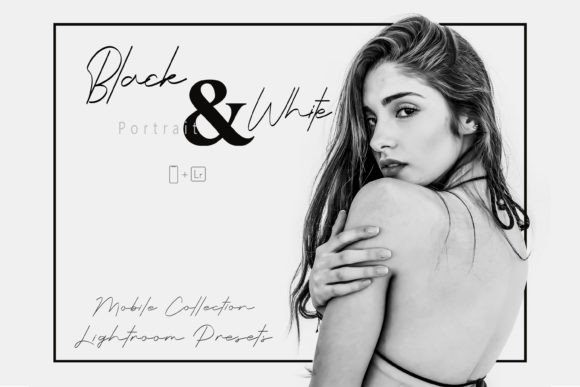
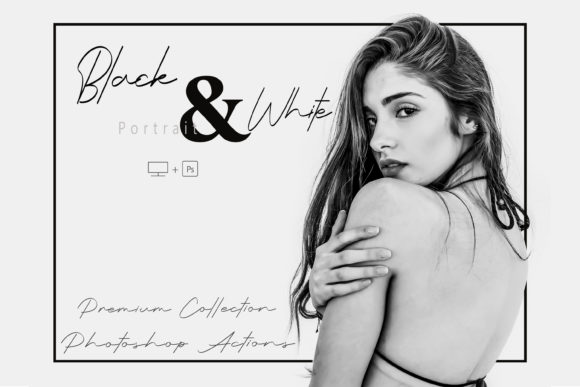
Black and white portrait photography isn’t just a stylistic choice—it’s a deliberate reduction. By removing color, you shift attention to light, shadow, texture, facial structure, and emotional nuance. The 20 Black White Portrait Photoshop collection responds to that intentionality: it’s a curated set of tools designed not for automatic conversion, but for expressive, controllable monochrome interpretation.
What Sets This Collection Apart
This isn’t a single “one-click” filter. The 20 Black White Portrait Photoshop package includes two complementary formats: 20 ATN (Action) files for Photoshop and 20 XMP presets for Adobe Camera Raw (ACR). Each action and preset is individually tuned—not just for contrast or tonality, but for how different skin tones, hair textures, background complexity, and lighting scenarios respond in grayscale. One action might emphasize midtone separation for studio-lit subjects; another may deepen shadows for dramatic environmental portraits. The included step-by-step PDF guides clarify how each works—not just how to run them, but when and why a particular action suits a specific image context.
Unlike generic black-and-white conversions that rely on luminance defaults, these actions incorporate channel blending logic, selective desaturation, and localized contrast adjustments—techniques often used by professional retouchers but rarely packaged accessibly. They assume some familiarity with Photoshop layers and masks, but don’t require advanced scripting knowledge. You retain full control: every action generates editable layers, so adjustments can be fine-tuned, masked, or blended at your discretion.
How It Compares to Other Monochrome Tools
There are many ways to convert to black and white: built-in Photoshop tools (like the Black & White adjustment layer), third-party plugins (e.g., Silver Efex Pro), mobile apps, or even AI-powered web services. Each has tradeoffs.
- Native Photoshop tools offer flexibility but demand manual setup—adjusting sliders for reds, yellows, greens, etc., to shape tonal response. For high-volume editing or consistent output, this becomes time-intensive. The 20 Black White Portrait Photoshop actions automate those decisions intelligently while preserving editability.
- Standalone plugins like Silver Efex Pro provide rich grain, toning, and film-simulation options—but they operate outside Photoshop’s layer system, limiting non-destructive refinement. The ATN/XMP approach keeps everything inside your existing workflow and file structure.
- AI-based converters often prioritize speed over subtlety. They may misread skin tone luminance, flatten texture, or over-sharpen edges. The 20 Black White Portrait Photoshop set doesn’t claim AI intelligence—but its human-crafted logic reflects real portrait challenges: how to preserve nose bridge definition without exaggerating pores, or how to hold detail in dark hair against a low-contrast background.
It’s also worth noting format compatibility. The ATN actions work in Photoshop CC 2019 and later; the XMP presets integrate cleanly into Lightroom Classic and Photoshop’s ACR interface. That dual-format support makes it viable for hybrid workflows—shoot in RAW, apply base tone adjustments in Lightroom, then refine in Photoshop using matching actions.
Strengths—and Where It Has Limits
The primary strength of 20 Black White Portrait Photoshop lies in its specificity. These aren’t universal “landscape” or “street” presets—they’re built around human faces, skin rendering, and portraiture conventions. Users report stronger consistency across sessions, especially when editing series (e.g., headshots for a team website or editorial features). The PDF guides reinforce that focus: they walk through real examples—how to handle backlighting, how to reduce noise in shadow areas post-conversion, how to combine actions with dodge-and-burn for sculptural emphasis.
However, it’s not a replacement for foundational skill. If you’re new to exposure correction, white balance, or basic masking, running an action won’t compensate for underexposed originals or clipped highlights. The tools enhance intention—they don’t invent it. Similarly, while the set covers varied moods (vintage, high-contrast, soft matte, gritty), it doesn’t include sepia toning, split-toning, or hand-colored effects. Those remain separate creative decisions.
Another practical consideration: the actions assume standard RGB working spaces (sRGB or Adobe RGB). If you routinely edit in ProPhoto RGB or use wide-gamut displays without proper calibration, results may vary slightly—especially in highlight rolloff and shadow gradation. Testing on a few representative images before batch processing is advisable.
When It Fits—and When It Might Not
20 Black White Portrait Photoshop fits well when you value repeatability without sacrificing nuance. Consider it if:
- You edit portraits regularly (e.g., commercial clients, personal branding, wedding second-shoots) and want cohesive yet distinctive monochrome output;
- You prefer staying within Adobe’s native ecosystem rather than installing external software;
- You appreciate learning *why* certain tonal relationships work—each action serves as both tool and teaching aid;
- You need outputs that scale: the same action applied across 20 similar portraits yields harmonized results, ideal for galleries, websites, or printed collections.
It may be less suitable if:
- Your work spans highly diverse genres (e.g., macro, architecture, motion blur) where portrait-specific tuning doesn’t translate;
- You rely heavily on non-Adobe tools (e.g., Capture One, Affinity Photo) — though XMP presets can sometimes be adapted, ATN actions are Photoshop-exclusive;
- You prioritize experimental or abstract outcomes over realism—these actions aim for naturalistic, flattering grayscale renditions, not avant-garde distortion;
- You need real-time preview across devices (e.g., iPad + desktop sync)—XMP presets support this better than ATN actions, which require Photoshop desktop.
Real-World Use Cases
A freelance photographer preparing a portfolio for a gallery submission used six of the actions across 32 portraits. Instead of applying one “look,” they matched actions to subject age, lighting condition, and intended mood—e.g., softer contrast for elderly subjects, higher micro-contrast for fashion-forward shots. The result was visual cohesion without monotony.
A university communications team editing faculty headshots adopted the set to unify tone across departments. Before, editors used inconsistent methods—some relied on Lightroom defaults, others manually adjusted curves. With 20 Black White Portrait Photoshop, they established a shared starting point, then added subtle custom tweaks per person. Turnaround time dropped by ~40%, and stakeholders noted improved perceived professionalism.
Even for personal projects, the set encourages deeper looking. One user described re-editing old travel portraits—not to “fix” them, but to explore how light and gesture read differently without color. That kind of reflective practice is harder to cultivate with overly automated tools.
Making Your Decision
Choosing editing tools is less about finding the “best” option and more about aligning with your process, goals, and growth edge. 20 Black White Portrait Photoshop occupies a distinct space: it bridges automation and craft. It saves time without surrendering control. It offers variety without chaos. And it treats black and white not as absence, but as presence—of tone, texture, silence, and focus.
If you’re evaluating alternatives, ask yourself: Do I need speed *and* adaptability? Am I working primarily with people? Do I want to understand—not just apply—monochrome logic? If yes, this set merits hands-on testing. If your needs skew toward broad genre coverage, cross-platform compatibility, or AI-assisted enhancement, other paths may serve you better. Either way, the goal remains the same: helping your images speak more clearly—whether in full color or carefully considered grayscale.